# HTML Body Tag Explained
In this article, we are going to continue our Basic HTML series. Over the last couple of weeks, I have discussed basic HTML structure ([Basic HTML Structure Explained](https://blog.roccosangellino.com/basic-html-structure-explained)) and explained what the head tag is ([HTML Head Tag Explained](https://blog.roccosangellino.com/html-head-tag-explained)). This week let's take a look at what the `body` tag is and some common elements you will see contained inside the `body` tag.
Table of contents
- [What is the body tag?](#what-is-the-body-tag)
- [Common HTML Elements](#common-html-elements)
- [Conclusion](#conclusion)
## What is the body tag?
The `body` tag is a container element that holds the contents of the site. Anything you potentially want visible to the user will go inside the body tag.
For example, if I want to display "Hello World" I would do the following:
```html
What is the body tag
Hello World!
```
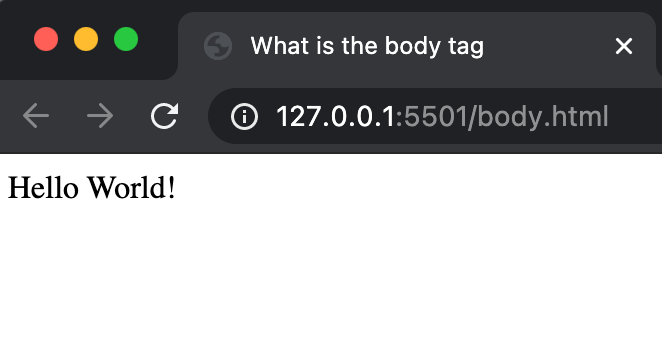
With that basic example, you created a web page! Since the `body` tag is a container that holds the contents of the site we can now expand on this and start to add other elements inside such as headers, navigation, sections, paragraphs, tables, forms, etc. Let's take a look at some common elements.
## Common HTML Elements
HTML provides us with many elements that we can use to structure our site. Below are some common elements you will encounter when building a website:
- `div` - The `div` tag stands for "division". In other words, it's a generic container that holds other elements or text. It can be used to "divide" your sites into different sections.
```html
I am a container that can hold other HTML elements.
```
**Rendered HTML: **
%[https://codepen.io/rjs84/pen/zYoEZyV]
- `span`The `span` tag is similar to a `div`, in that it's a container. The difference being a `div` is a block-level element and the `span` is an inline element.
```html
I am mostly used to markup text or other inline elements like icons.
```
**Rendered HTML: **
%[https://codepen.io/rjs84/pen/GRNMWaE]
- `h1-h6` The `h1-h6` tag defines the heading layout of the site. Generally, you will have one `h1` and each subsequent heading should be nested according. As we will be learning in future articles this is important for semantic markup and screen readers.
```html
```
**Rendered HTML: **
%[https://codepen.io/rjs84/pen/ZEBXeNP]
- `section` - The `section` tag is the same as a `div` in that it is a block-level container that defines a section of the site. The difference is a `section` has semantic meaning where a `div` does not.
```html
About Me
Hello! My name is Rocco. Thank you for reading my blog.
```
**Rendered HTML: **
%[https://codepen.io/rjs84/pen/LYbzWKG]
- `p` - The `p` tag is used for paragraphs.
```html
I would put my bio in a paragraph tag.
```
**Rendered HTML: **
%[https://codepen.io/rjs84/pen/yLVzMdG]
- `table` - The `table` tag is used for tabular data. The table tag will contain other elements to fill out a complete table. Such as: `thead`, `tbody`, `tr`, `th`, and `td`
```html
Name
Email
Phone
Rocco Sangellino
example@gmail.com
111-111-1111
```
**Rendered HTML: **
%[https://codepen.io/rjs84/pen/abBLJxo]
- `a` - the `a` tag stand for "anchor" or hyperlink. In order words, it enables you to link to other websites on the internet.
```html
Rocco's Blog
```
**Rendered HTML: **
%[https://codepen.io/rjs84/pen/oNYGZKx]
- `ul` - The `ul` stand for an unordered list. This allows you to add a bulleted list to your site.
```html
```
**Rendered HTML: **
%[https://codepen.io/rjs84/pen/bGBoqXv]
[w3schools](https://www.w3schools.com/tags/default.asp) has a comprehensive list of HTML tags with examples. I encourage you to take a look.
## Conclusion
In this article, we learned that the `body` tag is a container element that holds the contents of a website. Anything you want visible to the user will go inside the `body` tag. With this basic understanding, you can start to create web pages. However, we have just scratched the surface of building sites. Let's pick up in the next article discussing what semantic markup is and why it's important.
If you haven't already please follow me on Twitter ([@RoccoSangllino](https://twitter.com/RoccoSangellino)) where I share more information on web development.